Payment methods
From Payment Methods, you can register and view the methods used to receive or send payments.
Navigation path:
Invoicing → Settings → Payment Methods
How to create a payment method
1. Open Payment Methods
From the Invoicing module, go to Settings and select Payment Methods.
The list of registered methods appears.
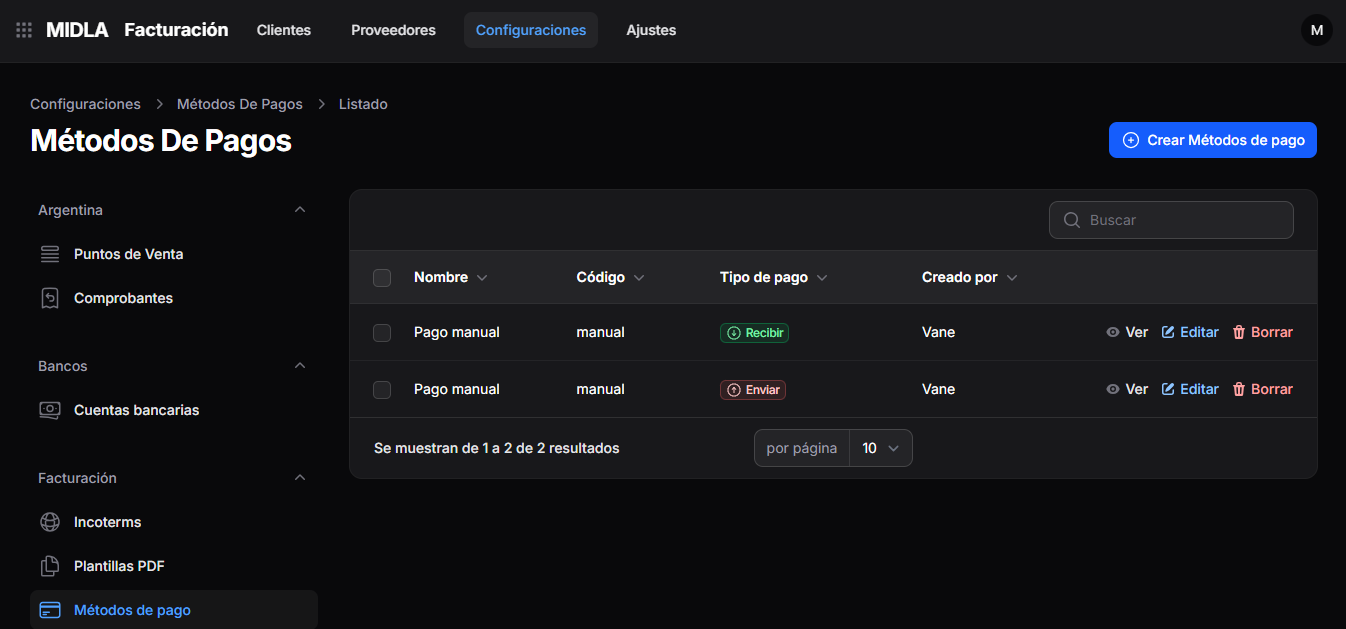
The list displays:
- Name
- Code
- Payment Type
- Created By
Use the Search field to find a record.
2. Select Create Payment Methods
In the upper-right corner, click Create Payment Methods.
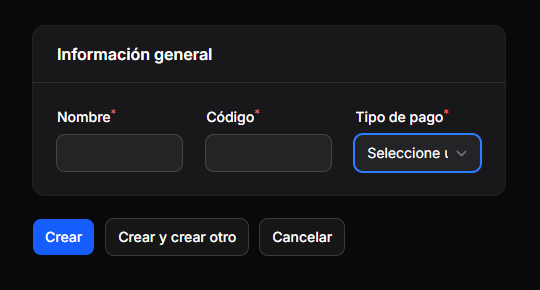
The form opens with the General Information section.
3. Complete the details
Complete the following fields:
- Name: enter a name that identifies the payment method.
- Code: enter the corresponding code.
- Payment Type: select whether the method is used to Receive or Send payments.
All three fields are marked with an asterisk (*) and are required.
In the list, the Receive type is identified by a green label and the Send type by a red label.
4. Save the payment method
Once you have completed the details, select one of the following options:
- Create: saves the payment method.
- Create and create another: saves the record and allows you to create a new one.
- Cancel: cancels the creation.
Manage payment methods
Each record in the list includes the following actions:
- View: allows you to view the payment method details.
- Edit: allows you to modify its details.
- Delete: allows you to delete the record.
Result
The payment method is registered in MIDLA with its name, code, and payment type.
You can view it under Invoicing → Settings → Payment Methods.